The scriptplayer for the phones in your scenes.
Prepare what is on the phone, record the scene once, and play it take after take. The phone waits for the actor’s touch. The messages and calls arrive on cue from your iPad.
Launching soon. One email the day SetScreens is available.

The Controller sends. The phone waits for the actor.
Every scene runs on two lanes. What comes at the character, a message or a call, is sent by the Controller on cue. What the character does, unlock, open, answer, waits for the Actor and a real touch, for as long as the performance takes.
01Prepare
Give every character a phone with a life in it.
A prop phone is only believable when it is full: contacts, old conversations, missed calls, a wallpaper. SetScreens fills it for you, then lets you rewrite anything until it fits the script.
Generate Setup: a lived-in phone in one tap.
Choose how many contacts, calls and conversations the character should have. SetScreens writes them and shows each stage on the phone, ending on a ready lock screen.
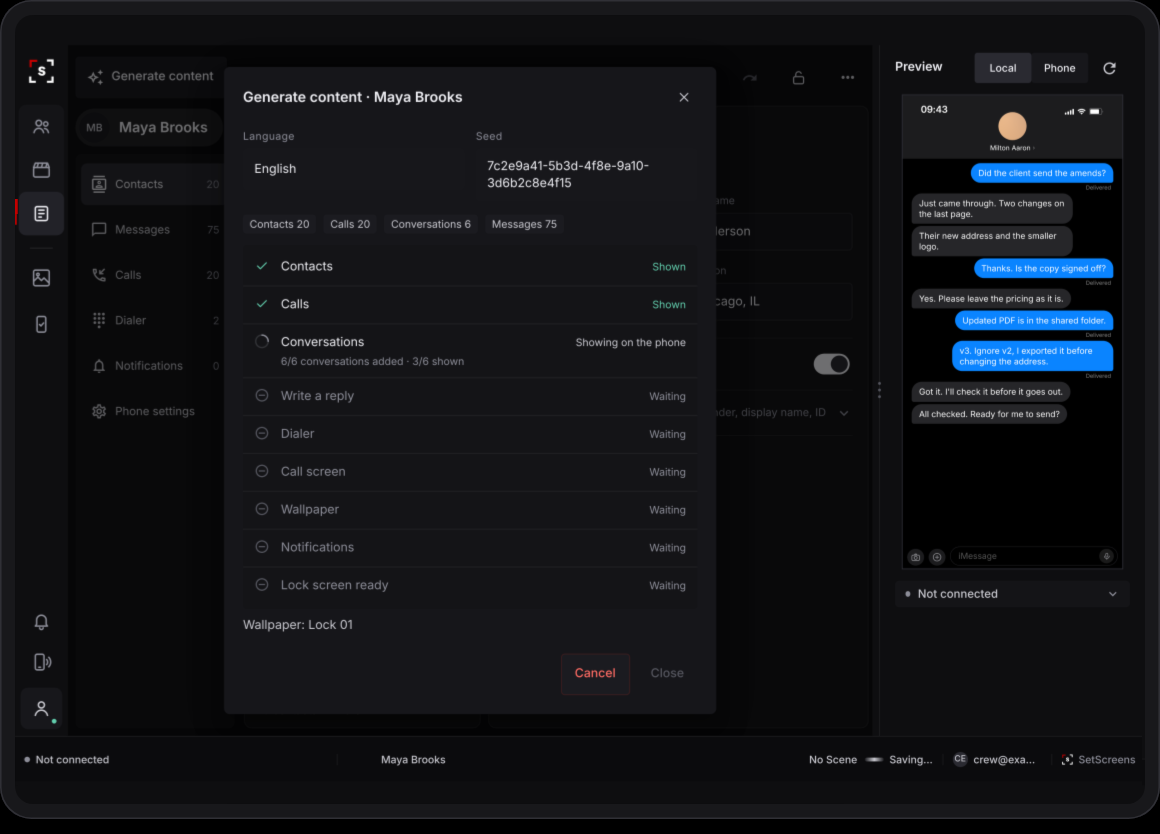
Generate Setup running for Maya Brooks: contacts and calls are done, the conversations are appearing on the phone.
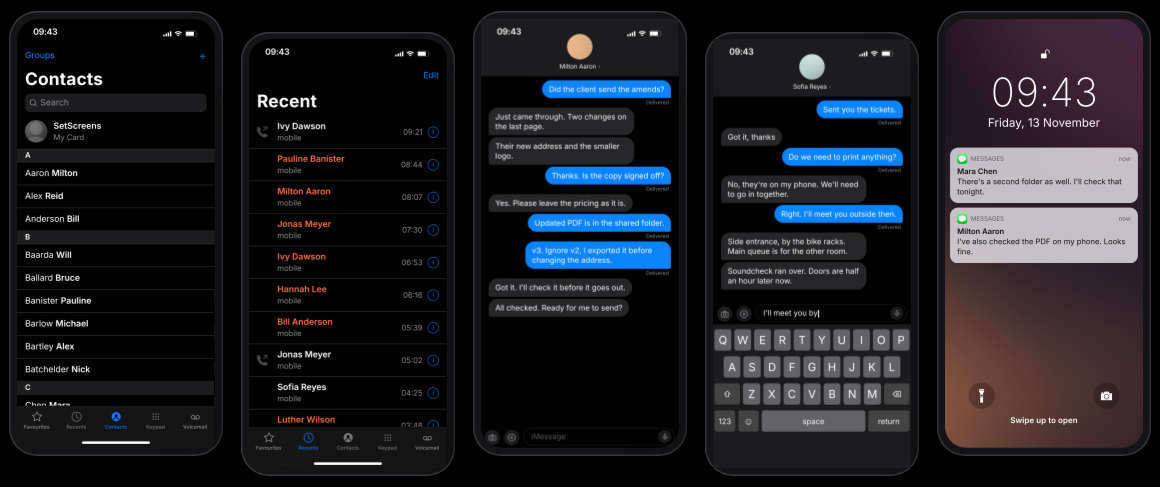
What it leaves on the phone. Screens rendered by the SetScreens Player: contacts, recent calls, a conversation, typing a reply, and the lock screen with notifications.
Rewrite the hero message. The phone follows.
Phone data is where the script meets the phone. Mark the contacts, calls and messages that matter as Hero, edit the text, the sender and when it arrives, and apply. The preview and the connected prop phone show the new line at once.
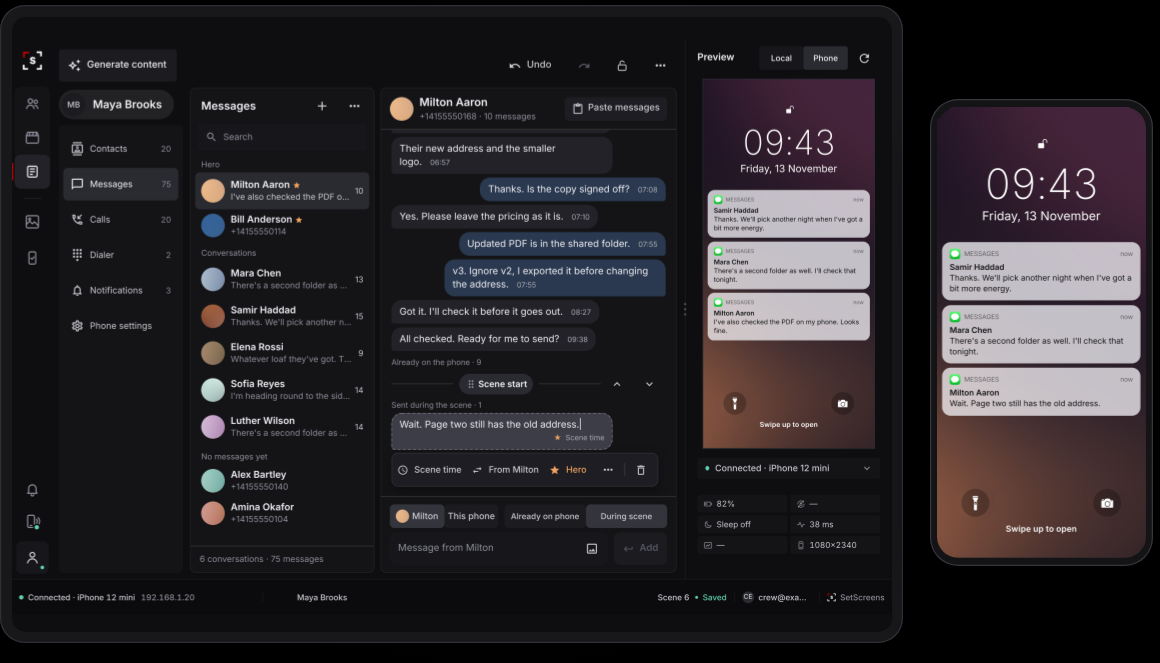
Left: the hero message from Milton Aaron being rewritten in Phone data, with the old line still on the mirrored phone. Right: the prop phone after Apply.
Switch character in one tap.
Every Actor is a complete phone, with its own contacts, messages, calls, settings and remembered look. Tap a name in Actors and that phone opens.

One tap on Daniel Cho opens his phone, in the Android look he was given. The Controller mirrors the prop phone connected to him.
Hero and background
Mark what the script needs as Hero. Generate or clear the background around it without touching those records.
Fictional number template
The English number template uses the 555-0100 to 555-0199 range reserved for fiction.
Lock it when it is approved
Lock content protects an Actor’s authored phone data.
02Record
Record the scene once. Then edit it like a script.
Press Record and play the scene in the preview on your iPad: tap, type, send the message, ring the phone. SetScreens turns what you did into a Script, step by step, on the Actor and Controller lanes.
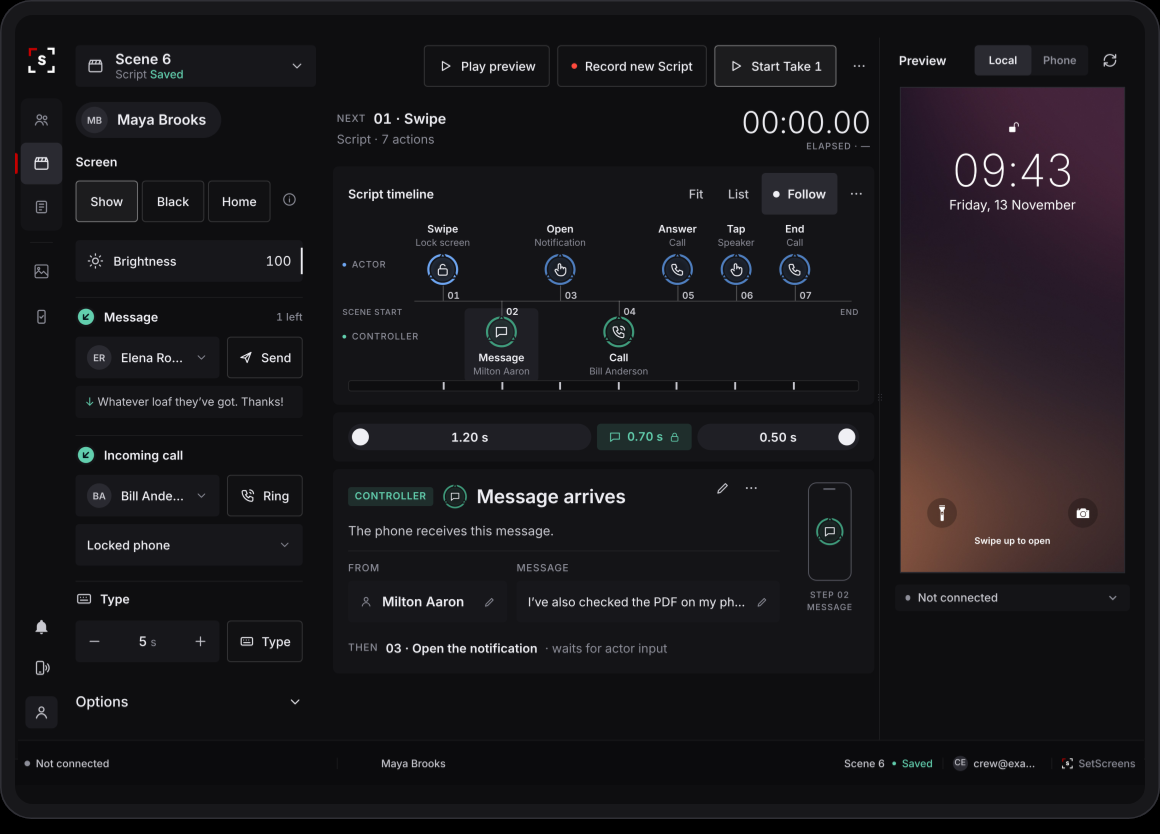
Scene 6 as a Script. Step 02 is selected: who the message is from, what it says, and how long the phone waits before and after.
Change the line
Pick another sender or rewrite the message in the step. The Script keeps its order and timing.
Set the timing
Adjust the wait before and after each step, to a tenth of a second.
No phone needed
Record, edit and preview on the iPad alone. Connect the prop phone when you are ready to shoot.
03Approve
An approval video and a clearance report, from the same Script.
Render the Script as a phone-screen video. It opens with a slate: production, scene number, the steps, the actor, the look and a clip ID, so everyone knows which version they are approving.
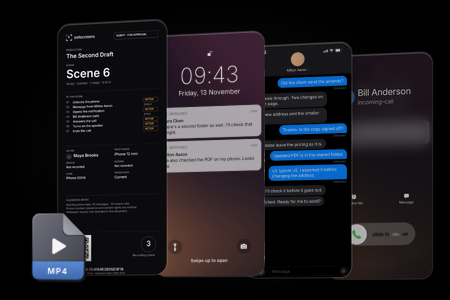
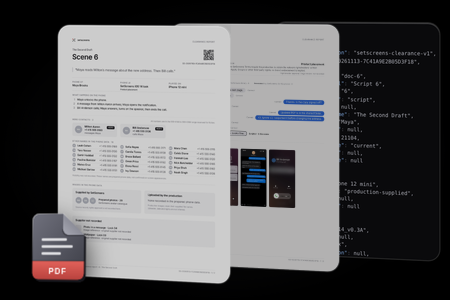

With an active key, one share from the Scene library lets you send the video with its report and JSON evidence.
Nothing to collect
The report gathers the scene’s names, numbers, messages, images and available source details.
Message text, tagged
Each line is marked as scripted for the scene, taken from the library, or generated for this phone.
Approval stays with you
The report is an inventory, not a clearance. It starts as “approval not recorded” for your team to complete.
04Shoot
Start a Take. The scene waits for the performance.
On set the Script runs on the real prop phone, and it works in both directions: the phone waits for the actor, and the Controller sends what comes at the character.
The phone waits for the actor
At an actor step the scene stops, with no time limit. The Controller shows it in amber and counts the wait. A real touch on the prop phone moves the scene on.

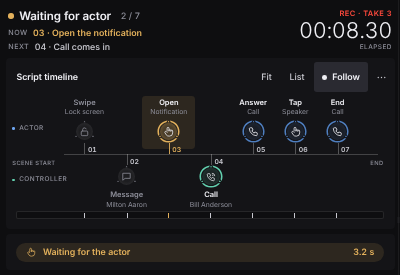
The Controller sends what comes next
The message or the call arrives on the timing in the Script. Or start it yourself from the Controller: Send, Ring and Type are one tap away.
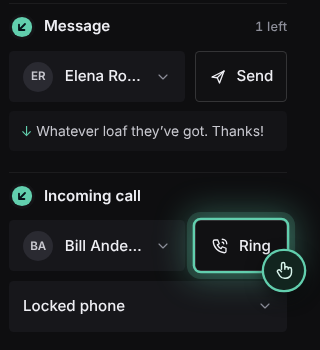

See the hero phone live
The Controller mirrors the phone in the actor’s hand over your local network, within reach of your production Wi-Fi.
Step in when the scene needs it
Send the message, ring the phone or type the reply yourself. Show the screen, black it out or send it home.
Off script? Keep rolling
Pause the guidance or advance a step by hand. The Take keeps recording.
05Post
Every take is kept. Render the one they used.
SetScreens saves each Take as it was really played: every touch, with its real timing. Pick the take the editors chose and render its screen video. It matches the performance on camera, so the insert lines up in post.
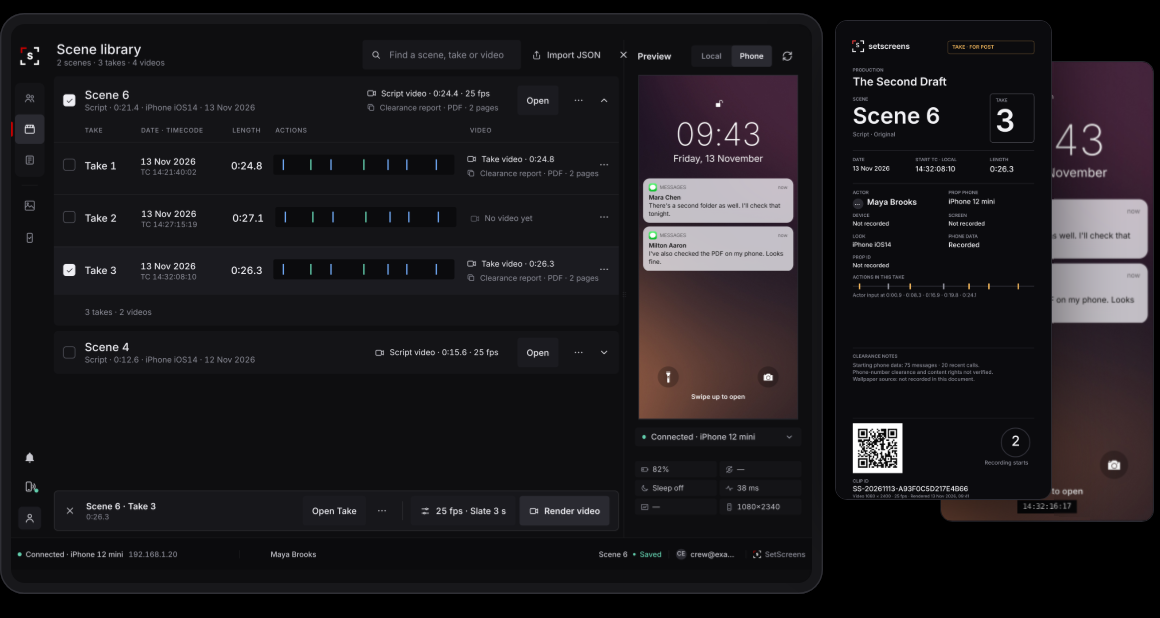
The Scene library keeps the Script, every Take and their videos. Right: the slate of the Take 3 video, and a frame with burned-in timecode. TC 14:32:08:10
Scene and take on the slate
Each take video opens with its scene and take number, date, start timecode and length.
Timecode if you want it
Burn the running timecode into the frame, at 25 or 30 fps.
A report for every video
Take videos get their own clearance report, from the phone data as it was recorded.
Change
Last-minute changes take minutes.
“The phone just died.”
Open the Player on another phone and connect it. The phone data and the Script live on the iPad, so the scene carries on.
“It’s an Android now.”
The Player runs on iPhone and Android. Switch the look to match the phone in the actor’s hand. The content stays.
“They changed the line.”
Edit the message, the caller or the timing in the Script, and play it again.
 IPHONE LOOKANDROID LOOKIPHONE LOOKANDROID LOOK
One phone, two looks: the same conversation and the same notifications in the iPhone look and in the Android look.
Less work for everyone around the phone.
Playback technicians
One iPad for the prop phones in the scene, a live mirror, manual control when you need it, and every take starting from the same prepared phone.
Editors and post
A screen video for the take that was used, with its real timing, slate and timecode, instead of rebuilding the insert by hand.
Production and clearance
An approval video before the shoot, and a clearance report with every video.
Launch
Free introductory access at launch.
SetScreens launches soon, with one free introductory key during the launch campaign: one live phone at a time, video rendering and clearance reports included. The campaign end date and eligibility will be shown in your account. No payment details, and nothing renews on its own.
Always free
Preparing and editing phone content, recording Scripts, and recording and replaying local Takes on the iPad.
With a key
Connecting prop phones for production, creating new videos and using clearance reports. One key runs one live phone at a time.
After the introduction
Pricing will be announced before launch.
Questions, answered.
When can I get it?
SetScreens is launching soon. Leave your email under Launch and we will tell you the day you can download it. You confirm the address once, and you can unsubscribe any time.
What do I need?
An iPad for the Controller and an iPhone or Android phone for each prop phone. It is one app: open Controller on the iPad and Player on each phone. All devices join the same local Wi-Fi.
Do I need internet on set?
The Controller and Players communicate over local Wi-Fi. Sign in and refresh your licence before the shoot, then check its offline deadline in Account & licences.
What is the difference between a Script and a Take?
The Script is the plan: you record it once by playing the scene, then edit it. A Take is a recorded run of the Script, including touches and their timing.
Is the clearance report a legal clearance?
No. It is an inventory of what the phone shows in the scene: names, numbers, images, message text and screens. Approval is not recorded by SetScreens and stays with your production.
What happens if the phone disconnects during a take?
The Controller carries on with its own preview. The interrupted Take is kept as it is, and you can connect the same phone or another one for the next take.
What happens after the introduction?
Preparing and editing content, recording Scripts, and local Takes and replay stay free. A key is needed for production phone connections, new videos and clearance reports. Pricing will be announced before launch.