SetScreens Get notified

Phone playback software · For film & TV

Build the phone sceneby playing it.

A believable prop phone. A scene the actor can actually play.

Add the story’s essential content and generate the background. Play through the phone scene to prepare it. On set, SetScreens follows that plan, waits for the actor, and records what really happened — ready to replay or turn into a screen video.

Working development build · Not publicly released yet.
See an actual video from the build ↓

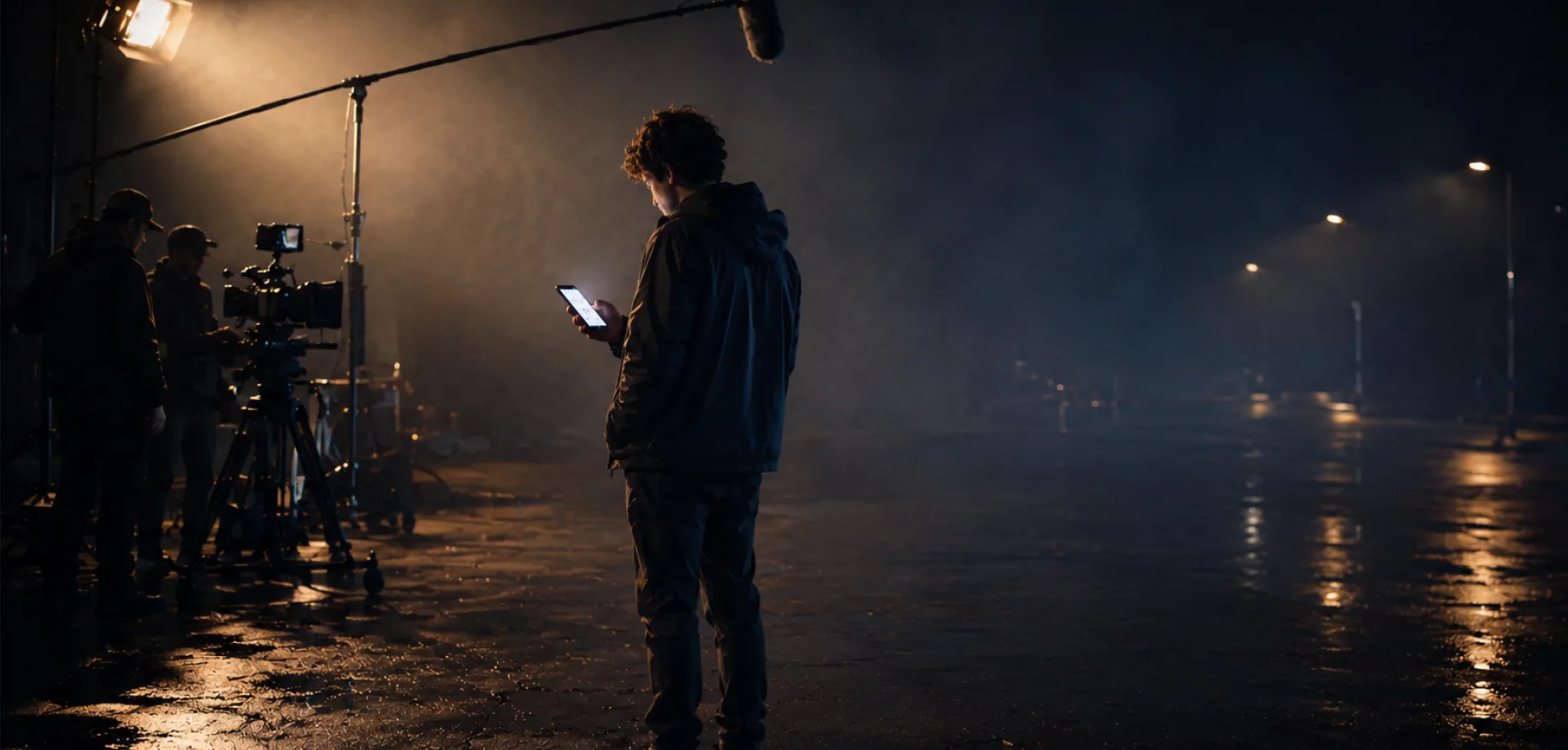
An illustrative film-set scene: an actor holding a prop phone, with a camera crew nearby.
Prepare → Perform → KeepYou set the scene.
The actor makes it a take.

Before launch

Be there for the first release.

Leave your email for one announcement when SetScreens is available. No development newsletter.

Signup received

Check your inbox.

If that address can receive mail, a confirmation is on its way.

Use another email

Confirm your address by email. Unsubscribe any time.

The problem behind the product

Be ready for the shot.
Even when the shot changes.

The screenplay mentions a phone. It may specify one message, not the conversations, contacts and history around it. You still need a believable screen — before anyone knows how much of it will be seen.

Then a name changes. Or the prop changes from an iPhone to an Android phone. SetScreens is built to keep those changes manageable, without rebuilding the whole scene.

Prepare the phone like a set. Then let the actor play in it.

  1. 01 / PrepareDress the phone.

    Enter the story’s essential content. Generate the background around it.

  2. 02 / ShowPlay the scene once.

    Your demonstration becomes an editable Script: the phone’s scene plan.

  3. 03 / ShootWait for the actor.

    Follow the prepared order. Cue events by timing or by hand.

  4. 04 / KeepKeep the real take.

    Replay the actual interactions and timing, or make a separate screen video.

01 · Dress the phone

The screenplay gives you one message.
You still need a whole phone.

Like dressing a room before the actors arrive, prepare the character’s phone before you play the scene. You supply what the story specifies; Generate fills the background.

Story content first. Background second.

Write what matters.
Generate the rest.

Enter the required contact, message or notification. Fill out the phone with background contacts, conversations and call history, instead of inventing every entry by hand.

The current generator supplies general background content for you to review. Character-personality profiles are a later step, not a feature of today’s generator.

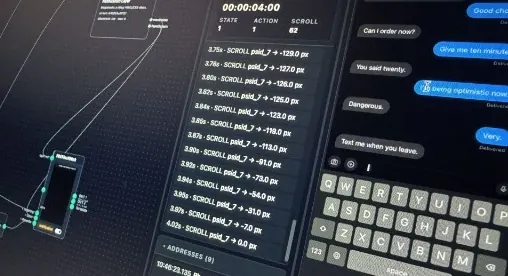
Development interface showing a phone conversation beside recorded interactions.
Development snapshot · Messages and recorded interactions. Some screenshots show earlier interfaces.

Story time, not today’s date

Make it the right day.
And the right phone.

Set the scene’s time, date, displayed battery level, signal, Wi-Fi and carrier. Adjust the dates shown in conversations and call history so the phone belongs to the story.

Clearance Report · In the build

Give production something
concrete to review.

Send the contact list and messages in a report that distinguishes the story’s required content from the background. Change a name and produce an updated report without rebuilding an animation.

The production approves the content; the report does not approve it for them. What it includes ↓

02 · Build by doing

Play it once.
That becomes the scene plan.

With the content prepared, record a run-through. Use the phone for the actor’s actions; use the Actions menu for incoming messages and calls. The sequence becomes your Script — no need to rebuild the same steps by dragging them into another editor.

Watch a scene become a Script.

Website illustration · Not app footage.

Demonstrate the scene

Message → open → call → answer.

Your phone-scene plan

4 steps

A Script keeps the sequence, timing and points that wait for the actor. It is a scene plan, not programming code.

  1. 01
    Message arrivesEvent · Cue from the controls
  2. 02
    Open the messageActor action · Wait for touch
  3. 03
    Incoming callEvent · Cue from the controls
  4. 04
    Answer the callActor action · Wait for touch

Created by playing. Still editable: adjust timing or remove an unwanted message before the next take.

A simplified example: message → open → call → answer. Prepare the content first; demonstrate the sequence to create its Script.

Demonstrate it to create it. Fine-tune it before the next take.

Next: try the actor’s part ↓

03 · Shoot at the actor’s pace

The phone waits for the actor.
The take keeps their timing.

The Script knows what comes next, not exactly when the actor will touch the phone. Try opening the message, then answering the call. Choose a timed cue or trigger the call yourself, as an operator would.

The order is prepared. The timing is yours.

Interactive website example · Not product footage.

Live take · Your touches

You decide
when to tap.

9:41••• ▰
9:41
Waiting for the actor’s touch.

Waiting for the actor

The scene continues after each prepared touch. A longer pause does not need a new Script.

Recorded events

What happened,
and when.

Example timing · Try it to use your own.

00:00.0Message arrivesScene cue
+4.0sWait for the actorOpen the notification
00:04.0Message openedActor’s touch
00:06.0Incoming callScene cue
+3.0sWait for the actorAnswer the call
00:09.0Call answeredActor’s touch

The Take keeps this run’s events and timing — not just a movie of the pixels.

Take replay

Your timing.
No new touches.

The replay uses the recorded timing, not another performance.

Replay uses your recorded actions and timing. It does not ask you to perform again.

Choose timed or manual cueing before starting. The timed call follows your actual touch; manual mode waits for the operator button. This website example keeps timings only in this tab. It does not export video.

Same starting point.
A different performance.

Each new Take restores the scene’s starting state automatically. There is no need to reset the conversation by hand. Keep the takes you need; their replay uses the recorded actions and timing, without waiting for new touches.

A Script is the plan. A Take is one actual run of it. See a real video output below ↓

04 · Keep the performance

The video follows the take.
Not the other way round.

SetScreens records screen events and their actual timing, not just a movie of the display. Replay a selected take and capture its screen video for review or post-production.

Actual development output · 1 min 42 sec
Browser capture · Silent sample

From the working build — not the website demo

A real exported example.

This development recording shows call-history scrolling, a call screen and the dial pad. It is a screen-video output, not a camera shot of a phone.

Today’s output is captured in the browser. Higher-quality server rendering is planned separately; the core video route already exists in the development build.

Before the shootRecord a walkthrough to show the actor or send for production review.

After the shootUse the chosen take’s timing for a screen video. Update a name or message and create a revised version for post-production.

The original take supplies the interaction timing. Any replacement of a screen in camera footage is still post-production work.

Ready for changes

The story moves forward.
The shoot rarely does.

Prepare a character’s conversation once, then build scenes from successive points in it. Load the scene you are shooting — even when production starts with the last one.

One conversation · Three story states · Illustrative example

  1. SCENE 12Before the message

    The earlier conversation is visible.

  2. SCENE 28The message arrives

    The same thread reaches its next beat.

  3. SCENE 43After the reply

    The conversation has moved forward.

01

Different phone design?
Keep the scene.

Switch between prepared iOS-style and Android-style designs in one click. The content and scene remain; you do not need to demonstrate the Script again. A custom skin changes the look, not the set of available app functions.

02

A late note?
Change the detail.

Edit a name, adjust an event’s timing or remove a message before the next take. Conversation changes carry through to later scenes. When needed, send an updated clearance report or video.

Earlier content changes can affect later scenes. Review affected material before shooting or issuing a new approval version.

For the person running the phones

Less technical setup.
Hands-on control.

For playback operators, prop teams and art departments. An interactive mirror lets the operator help the actor or cue an incoming event without reaching for the prop phone.

Controller + Player · Local network

When the director says “now”,
you can cue it now.

Use event-relative timing, or send the message or call manually from the controls. The next cue need not be tied to a fixed countdown from the start of the take.

The Controller shows connection status and the prop phone’s real battery level, with low-battery warnings. A prepared spare running the Player can receive the same setup when you need to change devices.

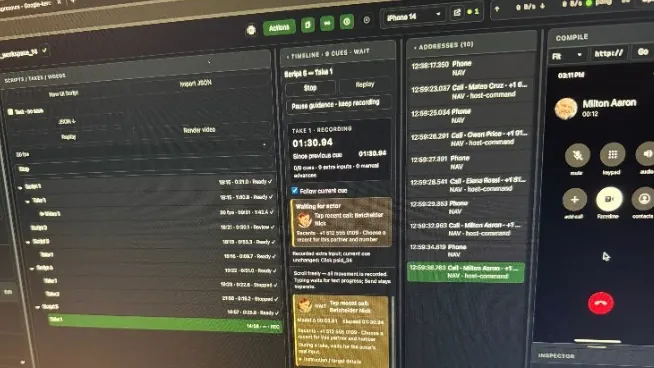
Development playback controls beside a mirrored phone call screen.
Development snapshot · Controls and phone mirror. This is not a final released iPad interface.

Offline-first preparation

Bring a router.
Not a dependency on the internet.

The intended iPad workflow covers content preparation, basic background generation, scene recording, takes and browser video capture without internet. The iPad and Player still need a local network.

Local background conversations and an avatar library are planned for offline use. Server rendering and future online generation are separate services.

The operator’s preflight

Prepare the devices.
Not just the graphics.

Use a dedicated Wi-Fi network and test the prop phones before the shoot. SetScreens helps with screen settings and status checks; the operator remains responsible for the device’s single-app mode and suppressing real-world interruptions.

Device requirements and current connection limits ↓

The person behind SetScreens

Built by someone
who makes the screens.

13+ years in motion graphics,
including screen graphics for film

I’m István, the motion graphics designer behind ISTVANOVICS.

On productions I worked on, a season could need around 30 phone animations or prototypes. I estimate that only about a tenth of what we prepared was actually visible in the finished film. We still made the rest, so the director had options.

The screenplay might supply one name or message. Someone still had to fill the phone around it, send it for approval, then handle a late name change — or discover that an iOS design now needed to appear on a Sony Xperia.

I wanted to stop rebuilding the same work. Dress the phone once, show it the scene, keep control on set, and preserve the real take for whatever comes next.

That is why I’m building SetScreens. It is an independent product in active development, shaped by the work of making screens for camera.

The production figures above are my own experience and estimates, not an industry survey or a promised saving.

Where it stands

A working build.
Not a public release yet.

The workflow is taking shape in the development build. The video above is real output; the two interactive demonstrations explain the idea. They are not the SetScreens application. No public launch date has been announced.

In the development build

Scenes, takes and output.

Core phone content, basic background generation, clearance reports, editable Scripts, actor-waiting playback, automatic take reset, replay and browser-captured screen video.

Before public release

Confidence on set.

Connection stability, responsiveness and the complete on-device workflow are the priorities. Reliable Controller–Player operation is a release requirement, not an optional polish pass.

Planned, not current

More ways to use the scene.

Image messages and enlargement, starting a take partway through a Script, a locked phone-connection demo and higher-quality server rendering are among the next directions.

Follow the next working demo, interface view or development update here as the site evolves.

Current focusCore phone scenes, not every app yet.

The focus is messages, contacts, recent calls, notifications and call screens. A custom design means a skin for supported functions — not an automatically working version of any app you can imagine.

Prepared typing already lets the actor tap keys while the queued text appears. General free-roaming and “any touch advances the scene” modes are not ready. Sound is not active yet; basic ringtones are planned.

Takes currently start at the beginning. Starting from a chosen later Script point is planned. Full project handoff between Controllers is not available yet and is different from switching a prepared Player phone.

On-set requirementsLocal network, tested phones, an operator.

The intended setup is an iPad Controller with prop phones running the Player over a dedicated local Wi-Fi network. Offline does not mean disconnected: the Controller–Player link must work.

Test the phones before the shoot, ideally the previous evening. Confirm charging, connectivity and the appropriate single-app settings. A guided device-performance and connection test is planned; it is not a released check today.

In the current build, losing the Controller connection sends the phone to the SetScreens test screen. Seamless disconnected playback and uninterrupted mid-take handover are not being promised.

Supported hardware, operating-system versions and activation requirements will be published before launch. A screen’s iOS or Android look is not a device-compatibility guarantee.

Clearance Report · Working buildNames and messages, ready for review.

The current report includes the contact list and messages, with story-required (“hero”) content distinguished from background material. Individual names can be changed directly; a completely new name list calls for regeneration and another review.

Importing a production-approved name list, a first-names-only option and country-aware film phone-number handling are planned. They are not current automatic safeguards.

The report is a review document. It does not grant clearance for names, photographs, brands or designs; production approval remains a separate step.

Longer-term roadmapBeyond the core phone workflow.

Content and screens

Image messages you can enlarge, a photo viewer and maps. Social-style screens would use production-supplied images. Personality-based generation and built-in image generation are later directions.

Connected scenes

A shared timeline across named character phones, with one device’s action able to trigger another. Live two-phone video calling is also planned, not currently available.

Post-production

Higher-quality server rendering and a 4K message-thread export with a transparent background for compositing over the film image. These are separate from today’s browser video output.

Workflow details

Scene-and-character take logging, more screen styles, interface languages and a story-driven low-battery alert. Take timestamps and SetScreens’ own take numbering are separate from camera take numbers.

These are product directions, not launch commitments or delivery dates. The current focus remains a dependable core phone workflow.

The planned way to try SetScreens

Learn the workflow for free.Pay to use your scene on a phone.

The planned free mode lets you work with your own content and the interactive virtual phone on the Controller. A separate locked-content demo will let you test a real Player connection before paying.

This is the launch model, not a download available today. No 14-day trial countdown is planned.

Free · Your content

Explore the workflow.

Prepare a phone, demonstrate a scene and try takes and replay using the Controller’s virtual phone. Learn the process before using it on set.

Planned free connection demo

Test your actual phone.

Connect a Player to a supplied demo scene. Its content is locked, so you can test the device link separately from paid use of your own scenes.

Paid · Your scene on a Player

Use it on the prop.

Payment unlocks using your own prepared scene on a connected phone. The paid model is for real-device use, not a short authoring trial.

Indicative launch pricing · Not for saleThe current pricing proposal.
Live phone seat

€150per month

8-seat production bundle

€1,000per month

These amounts are the existing launch proposal, not an open offer. Final licence allocation, device changes, activation, billing and export entitlements will be published before sales open.

No public launch date is announced. Follow development now, or leave your email for the release announcement.

Get notified at launch

Practical questions

What to expect.
And what not to assume.

Current build, intended launch workflow and later plans are different stages. The answers here keep those distinctions visible.

What is SetScreens, and who is it for?

Software for interactive prop-phone screens in film and television. Screen graphics designers, playback operators, prop teams and art departments can prepare content, demonstrate a scene, run it with an actor and preserve its screen performance. It is in development, not yet publicly released.

What is a Script, and what is a Take?

A Script is the phone’s editable scene plan: events, their order, timing and interaction points. It is not the film’s screenplay or programming code. A Take is one actual run, preserving the screen events and real timing. Many Takes can use the same Script.

Does the actor have to copy the rehearsal timing?

No. At prepared interaction points, playback waits for the actor’s touch. A timed event can follow the actual preceding action; an operator can also cue an event manually. A recorded Take replays what happened without requiring the actor to perform again.

Can I change the scene or repeat a take?

You can adjust timing and remove an unwanted message before the next take. New Takes restore the starting state automatically. Starting a Take partway through a Script is not available yet. Replaying an existing Take uses its recorded timing, rather than running the newly edited plan.

Can the actor press anything or use normal phone apps?

The scene runs inside SetScreens, not the phone’s everyday apps. It waits at prepared interaction points. General free-roaming and any-touch progression are planned. Prepared typing already lets keyboard taps reveal the queued text. The operator can intervene through the controls.

What happens when earlier story content changes?

Changes to the shared conversation appear in later scenes too. Review the affected scenes and issue updated approvals where needed. A revised screen video can use a recorded take’s timing with updated content; replacing material already filmed by the camera is a separate post-production job.

What can I give production today?

The development build can produce a contact-and-message clearance report and a browser-captured screen video. The real MP4 above is an output example. Higher-quality server rendering and a 4K transparent message overlay are future plans, not current export formats.

Will it work without internet?

Offline-first use is the intended iPad workflow: preparation, basic content generation, Scripts, Takes and browser video capture. The Controller and Player still need a working local network. Future server rendering and online generation require internet; final activation requirements remain to be confirmed.

What devices does it support?

The intended setup uses an iPad Controller and prop phones running the Player. Final supported devices and operating systems will be published before launch. A design’s iOS or Android appearance does not establish hardware compatibility. Other authoring or Controller platforms are not being promised here.

What is free, and can I try it now?

Not publicly yet. At launch, the planned free mode lets you explore the workflow with your content on the virtual phone. A separate, locked-content demo will test a real Player connection for free. Using your own scene on a Player is paid. Final export and licence terms are still to be confirmed.

Follow the next chapter

Hear when SetScreens is ready.

Leave your email for the public release announcement.

Get notified at launch ↑